Scenarios
Compare alternatives — a bigger main, a new reservoir — as scenarios and sub-scenarios inside one project.
Make a scenario
Press the scenario button on the Analysis tab — it carries the name of the active scenario.
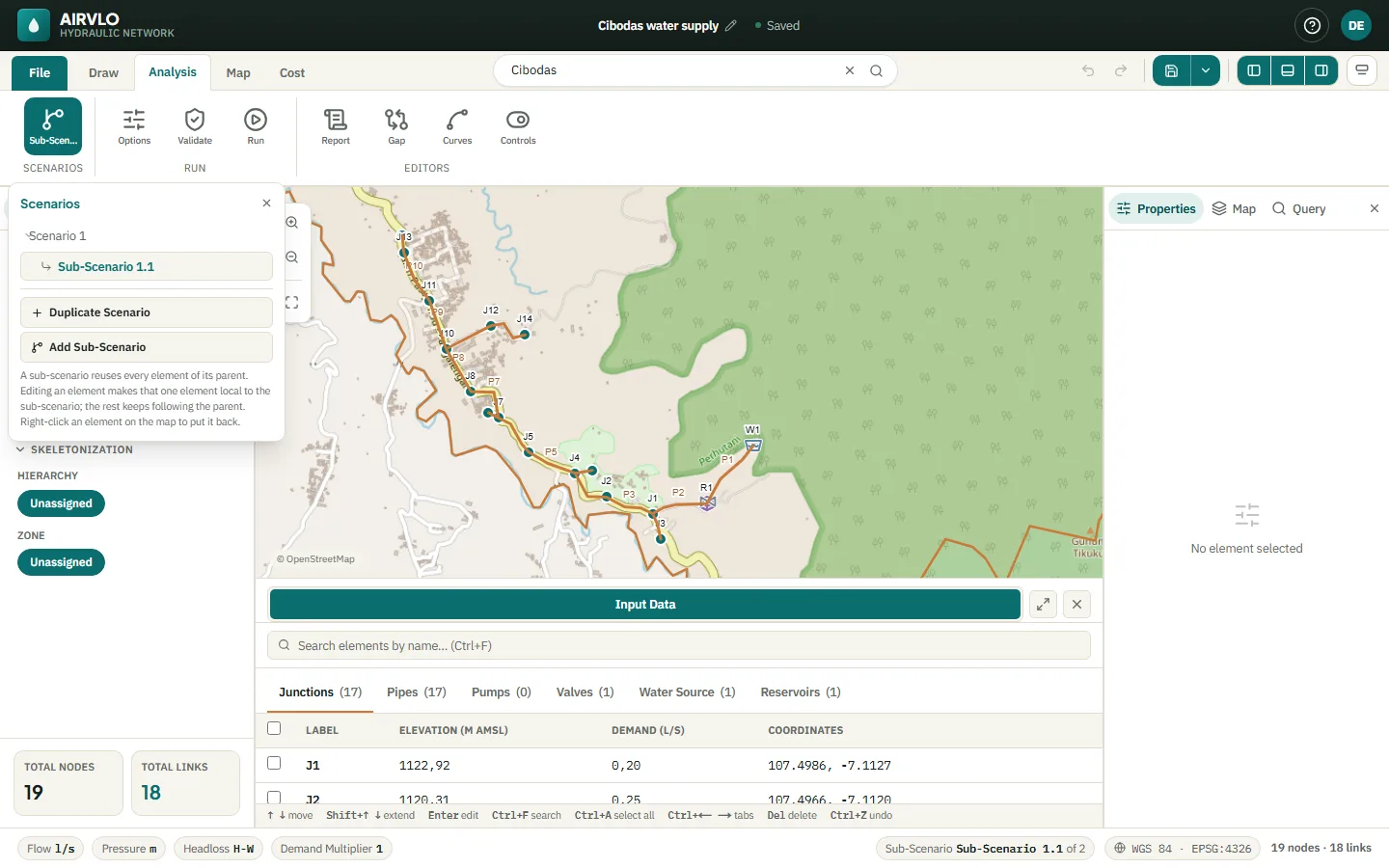
- Duplicate Scenario — an independent copy. Later changes to the original don’t reach it.
- Add Sub-Scenario — follows its parent. Only the elements you edit in it become its own; everything else keeps following the parent.
Click a scenario to switch to it, or use Ctrl+Page Up and Ctrl+Page Down. The row menu has Rename, Duplicate, New blank scenario and Delete scenario. Deleting a scenario also deletes its sub-scenarios and can’t be undone.
Work in a sub-scenario
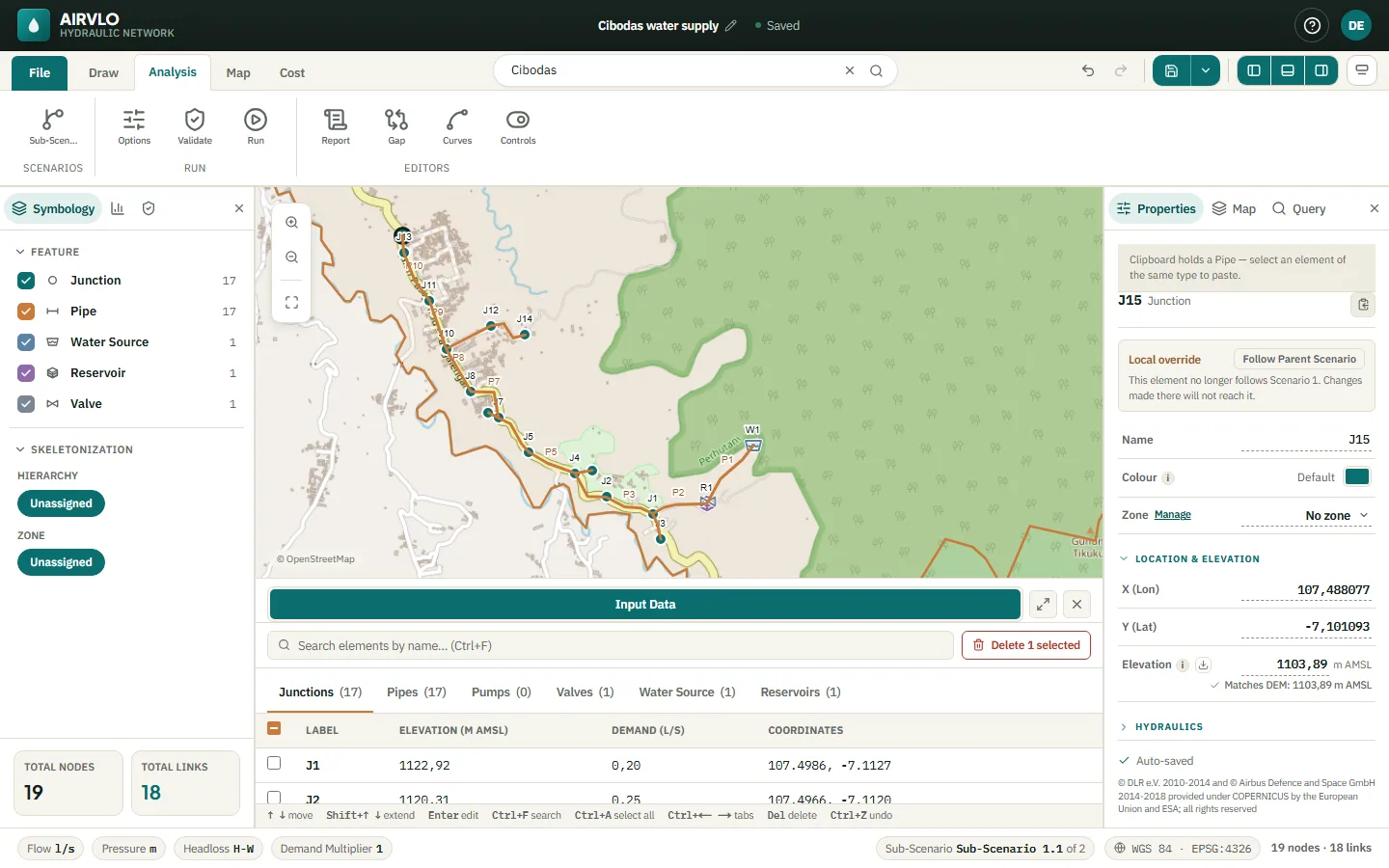
Rows you changed are marked Local override in the data table. To make an element follow the parent again, right-click it and choose Follow Parent Scenario. Analysis options are inherited too, until you change them in the sub-scenario.
Compare two scenarios
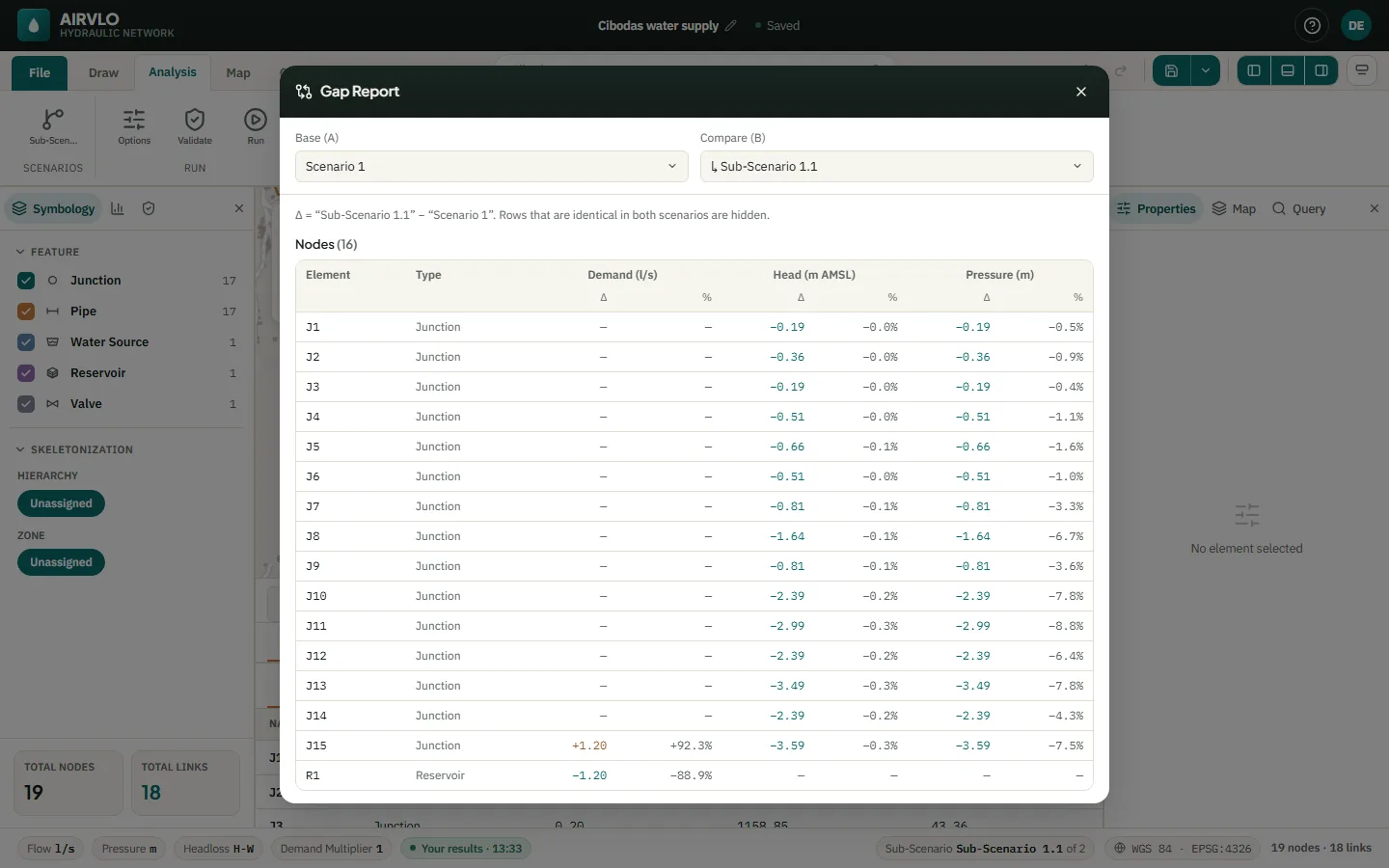
Run both scenarios, then press Analysis › Gap. The Gap report puts the results of Base (A) and Compare (B) side by side and warns when one of them needs a new run.