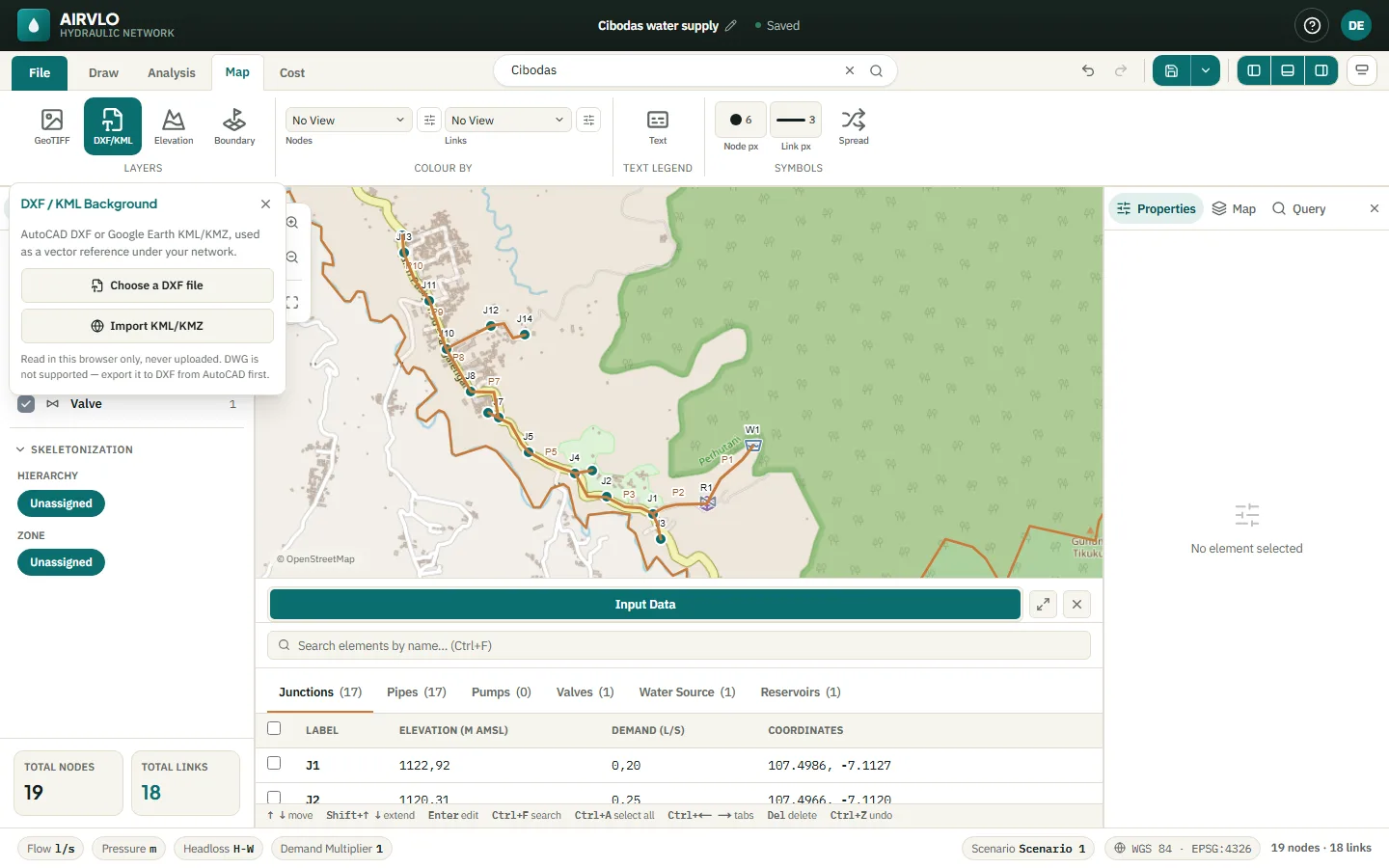
Elevation & background maps
Elevation comes from a terrain model. Put a GeoTIFF image or a DXF or KML drawing under the network, and outline an administrative boundary.
Elevation from the terrain model
New junctions and bends get their elevation automatically. For a network you opened from a file, use Map › Elevation › Fill from Copernicus DEM: it fills every node and pipe bend whose elevation is still 0 and leaves the numbers you typed alone.
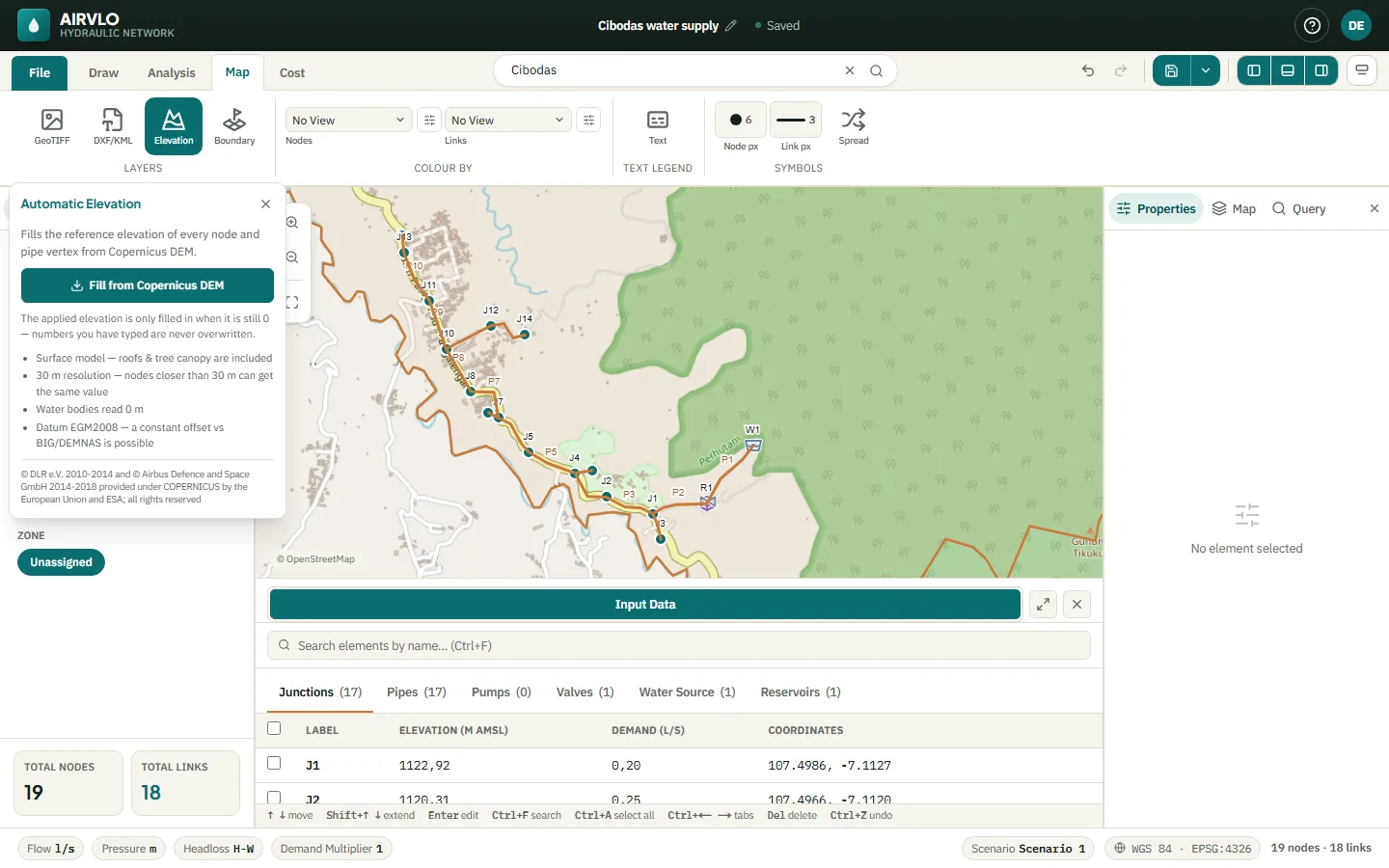
The terrain model is a 30 m surface model: roofs and tree tops are included and water reads 0 m. For a design, check key points against your survey and type the surveyed value in Properties.
Each node keeps the terrain value as a reference next to the elevation it uses. Use reference value copies it over when you want to go back to the terrain.
Elevation profile
- Select the pipes along a route — Shift+click them one by one.
- Right-click one of them and choose View elevation profile.
- The profile opens in the bottom panel with distance, climb, descent, maximum slope and the lowest and highest point.
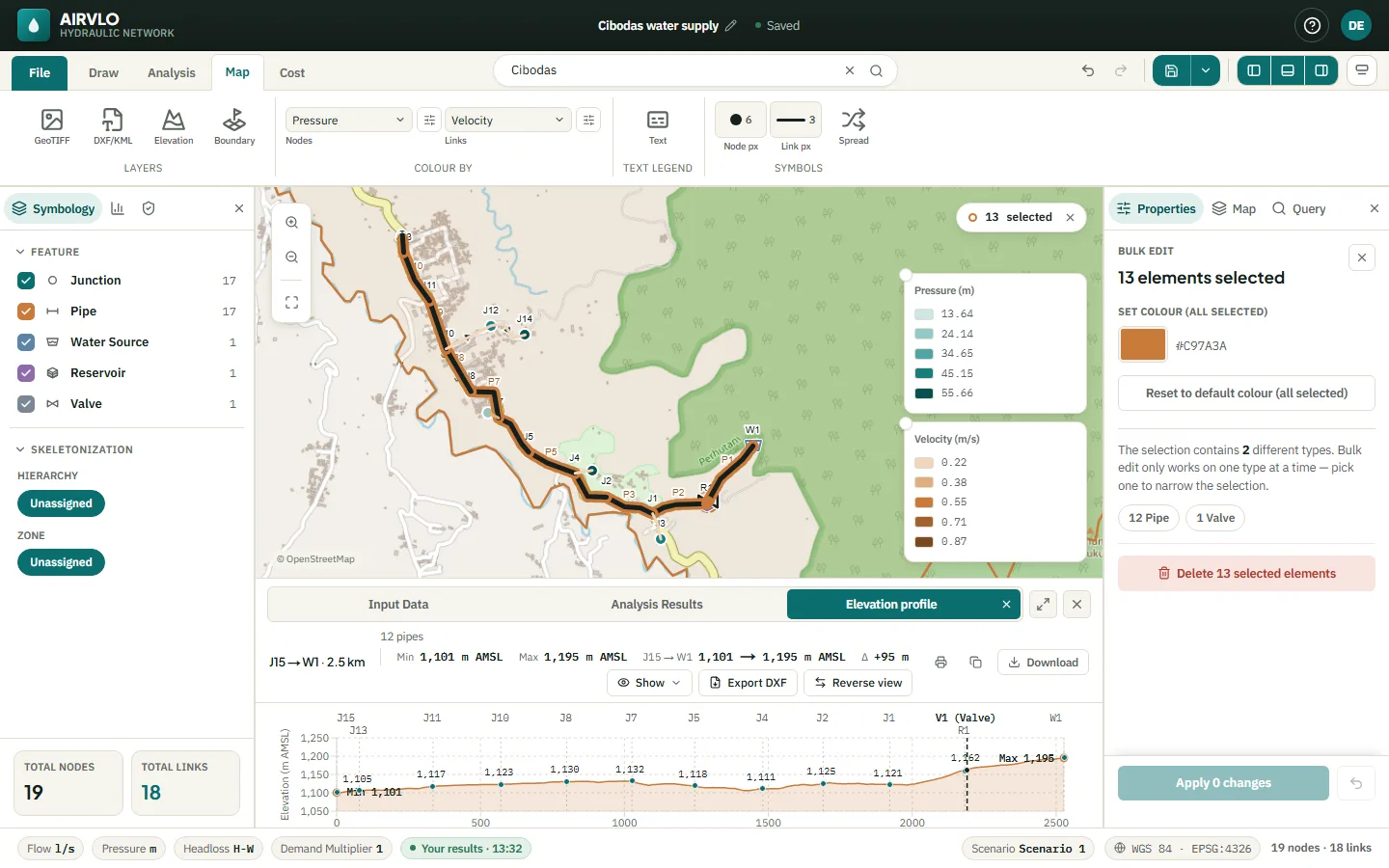
Show turns on grid lines, junction names, pump and valve markers and side branches. Reverse view flips the direction. Download saves the points as .csv and Export DXF draws the profile for CAD.
Background layers
All layers are on the Map tab under Layers:
- GeoTIFF — a georeferenced image, such as a drone photo, shown under the network. The file is read in this browser and is not uploaded: on another computer AIRVLO asks you to load it again.
- DXF/KML — a CAD drawing or a KML/KMZ file. A DXF without coordinates can be placed by UTM zone, easting and northing (or Auto-detect), then moved, scaled and rotated. Each layer has its own colour, line width and opacity.
- Boundary — the administrative boundary you picked in the search box, with its own line and label colour. It is a visual reference only, not a legal boundary.
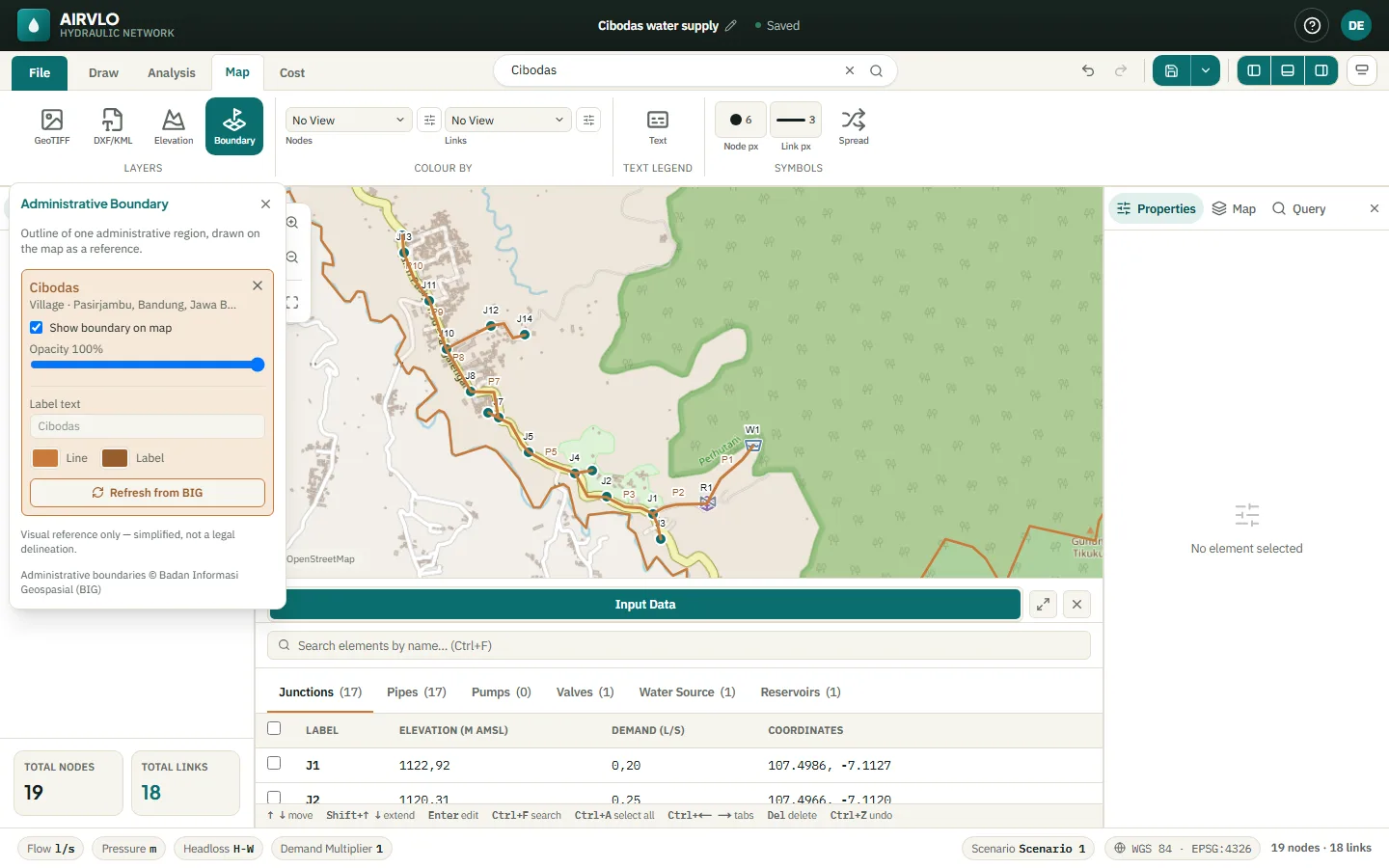
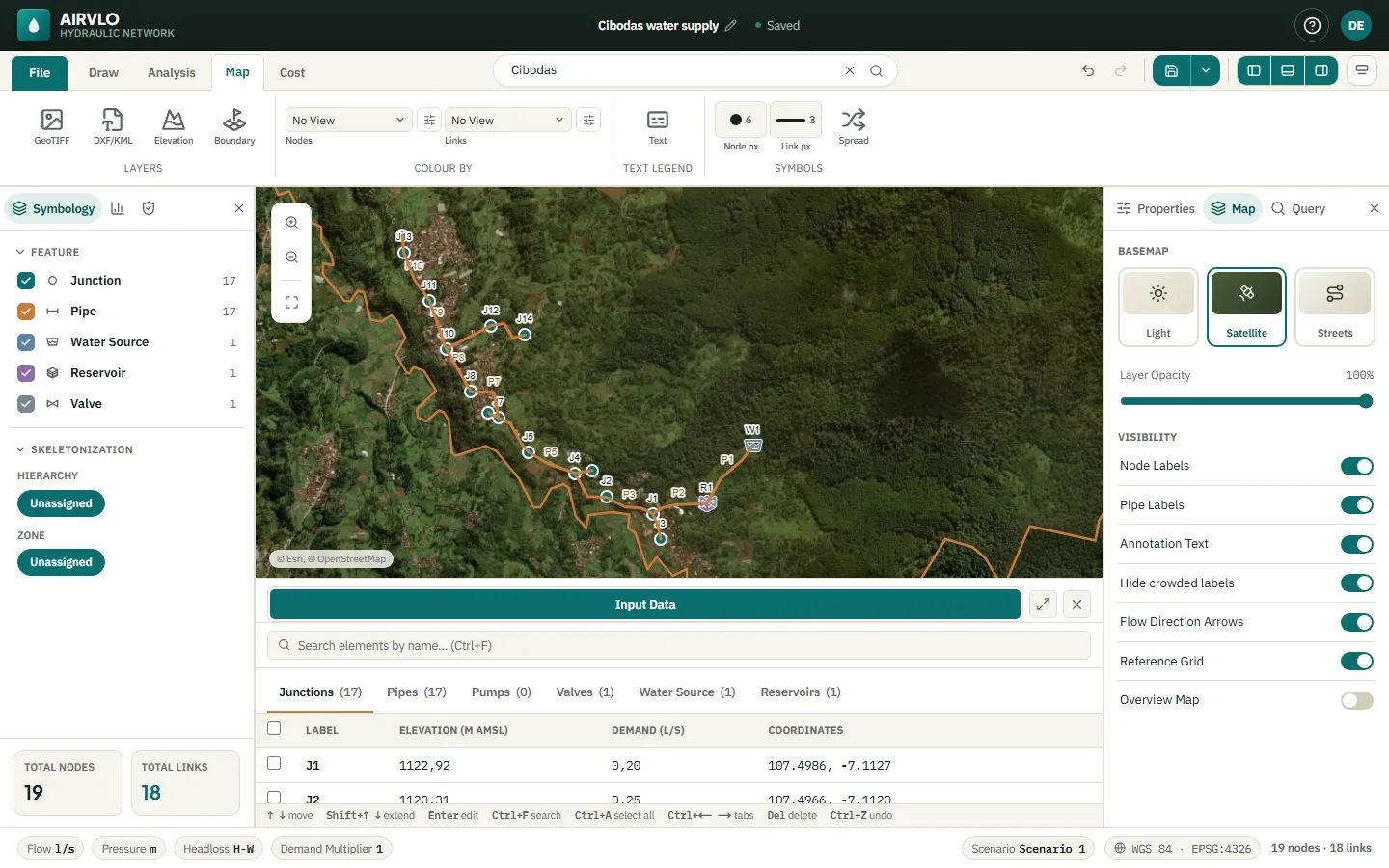
Change the base map in the right panel: Map › Basemap has Light, Satellite and Streets.