Draw the network
Build the model straight on the map: place the nodes, then join them with pipes. Elevation is read from the terrain under each node, so you rarely type it.
Place elements
- On the Draw tab, press Water Source and click the map where the water comes from. Then press Junction and click each point that takes water or joins pipes.
- Press Pipe, click the first node, then click along the route. Every click in between becomes a bend.
- Click another node to finish the pipe there. Or double-click — or press Enter — on empty map to finish with a new junction.
- Keep clicking: the next pipe starts where the last one ended, so you can draw J1 – J2 – J3 in one go.
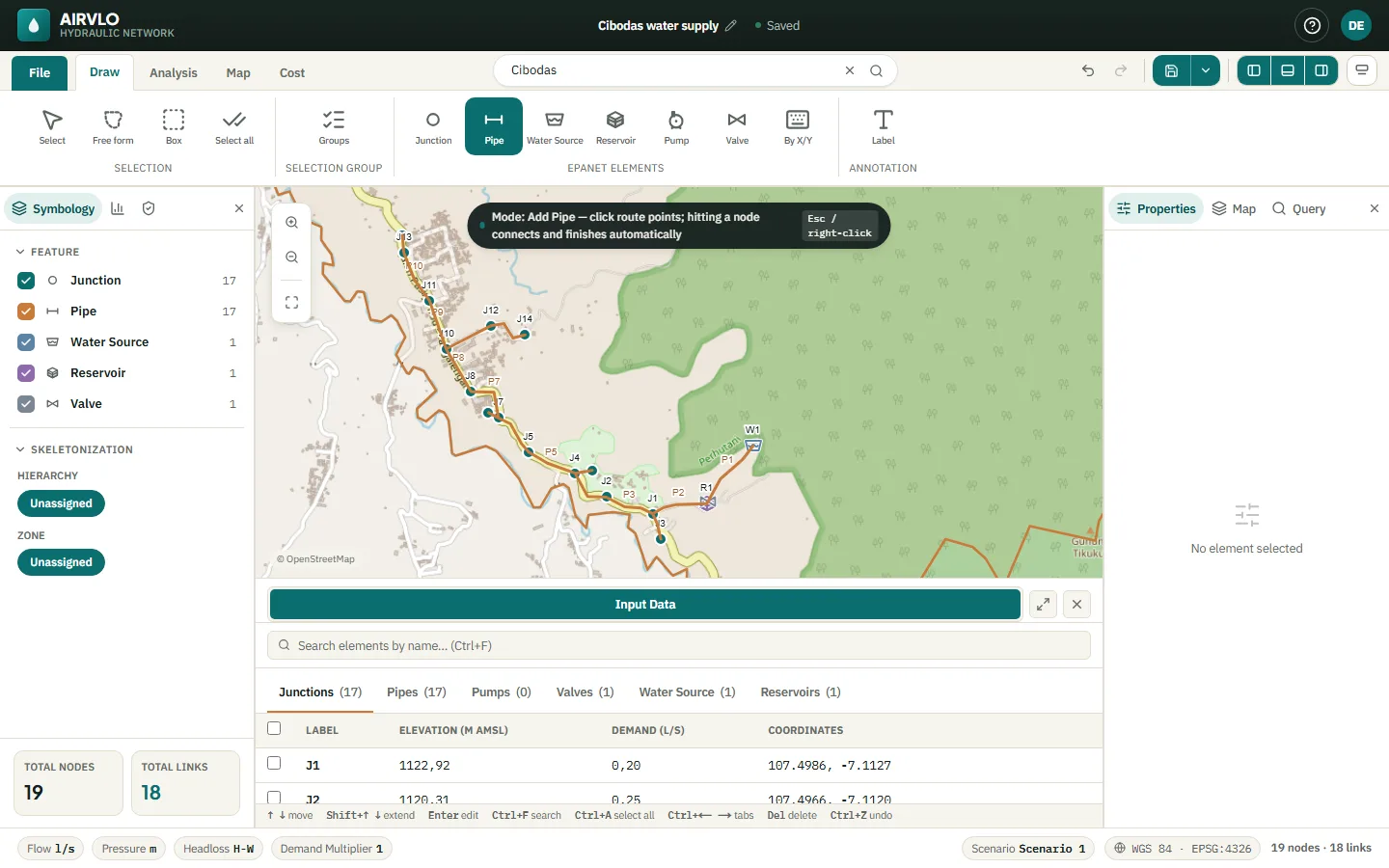
A tool stays on until you leave it: press the button again, press Esc or right-click the map. Esc works in steps — first it cancels the pipe you are drawing, then it returns to Select. Right-clicking while you draw a pipe removes the last bend.
New junctions and pipe bends get their elevation from the terrain model as you draw. You can still type your own value in Properties.
Which element to use

 Junction
Where pipes meet and where water is taken out. Holds the demand.
Junction
Where pipes meet and where water is taken out. Holds the demand.
 Pipe
Joins two nodes. Type, class, diameter and roughness come from the pipe catalogue.
Pipe
Joins two nodes. Type, class, diameter and roughness come from the pipe catalogue.
 Water Source
A spring, river intake or supply main at a fixed head that never runs dry.
Water Source
A spring, river intake or supply main at a fixed head that never runs dry.
 Reservoir
A storage tank whose level rises and falls, with initial, minimum and maximum levels.
Reservoir
A storage tank whose level rises and falls, with initial, minimum and maximum levels.
 Pump
Adds head along a head curve. Click a pipe to split it and put the pump in it.
Pump
Adds head along a head curve. Click a pipe to split it and put the pump in it.
 Valve
PRV, PSV, PBV, FCV, TCV or GPV. Click a pipe to split it and put the valve in it.
Valve
PRV, PSV, PBV, FCV, TCV or GPV. Click a pipe to split it and put the valve in it.
 By X/Y
Place a junction, water source or reservoir by typing or pasting its coordinates.
By X/Y
Place a junction, water source or reservoir by typing or pasting its coordinates.
 Label
Free text on the map, such as a village name or a note for the drawing.
Label
Free text on the map, such as a village name or a note for the drawing.
When a pump or valve is placed on a pipe, AIRVLO asks first — Split and insert — and both halves keep the pipe’s properties. One Ctrl+Z undoes the whole step.
Select elements
- Select — click an element; Shift+click adds more.
- Box — drag a rectangle around elements.
- Free form — click points around the elements and double-click to close the shape.
- Select all (Ctrl+A) — every visible element.
- Groups — save the current selection with New from Selection and pick it again later with one click.
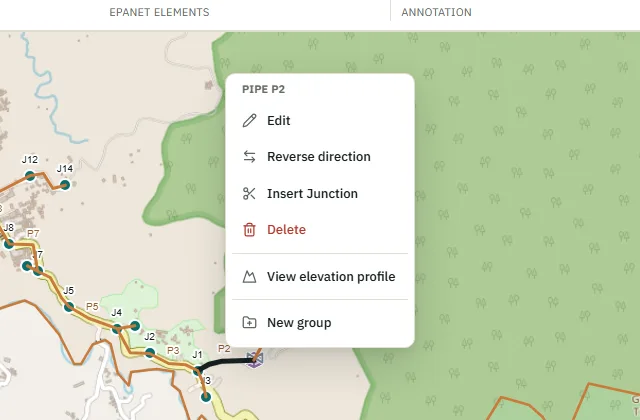
Right-click an element for more: Edit, Reverse direction, Insert Junction (splits a pipe), View elevation profile, the group actions and Delete.
Fixing mistakes
- Undo and redo — Ctrl+Z and Ctrl+Y, or the arrows at the top right. Hover them to see which step they undo.
- Move a node — select it, then drag it. The pipes follow.
- Change a pipe route — select the pipe, drag a bend to move it, drag a straight part to add a bend, and Alt+click a bend to remove it.
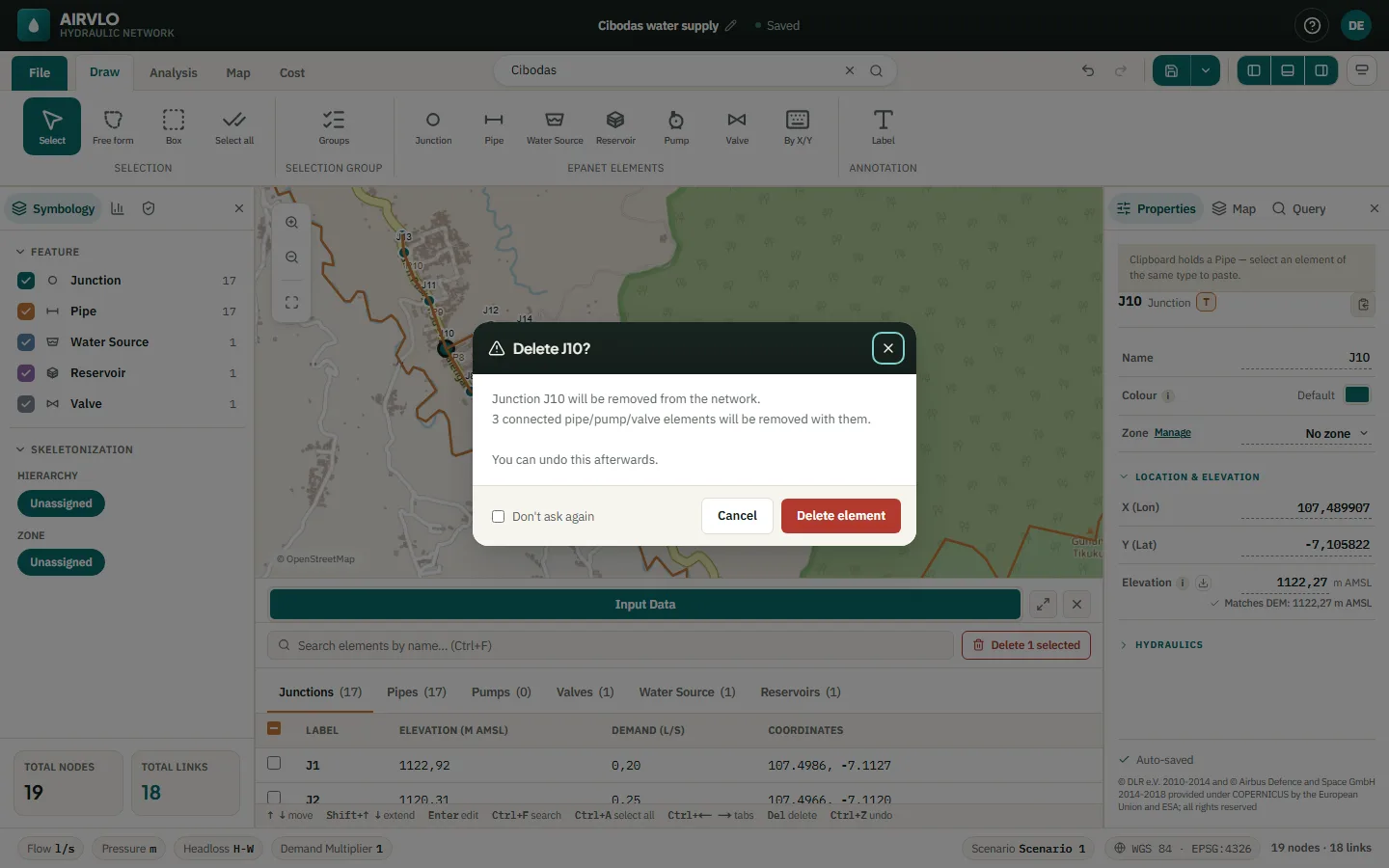
- Delete — press Delete. AIRVLO lists the pipes that go with a node before it deletes anything. If you ticked Don’t ask again, turn the question back on in Settings › Interface › Confirm before deleting.