Getting started
Create a free account, then press New project. Pick where the project is, the units you work in and the default pipe settings — you can change all of it later in Settings.
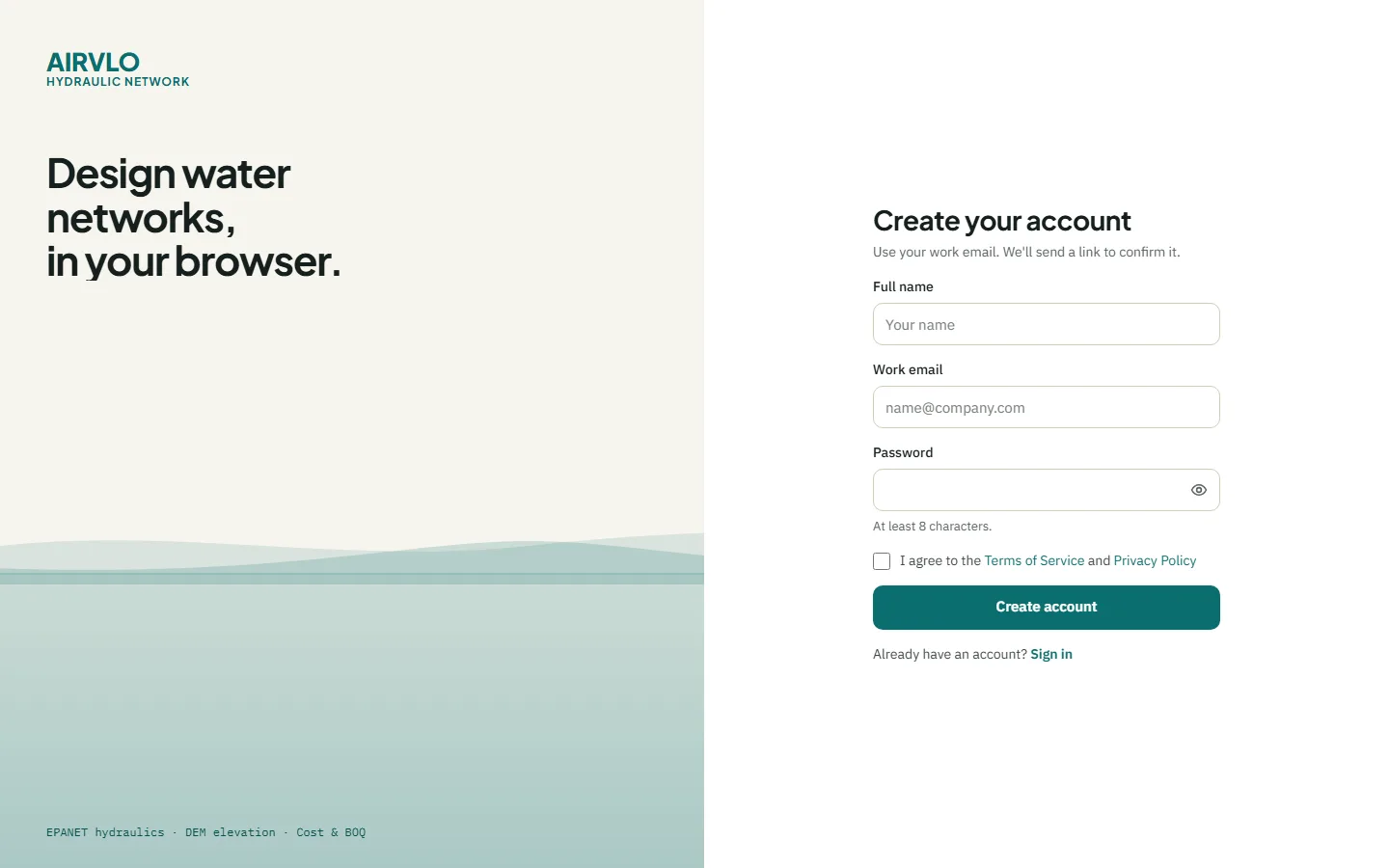
Create an account
- Open Create an account and fill in your Full name, Work email and a Password of at least 8 characters.
- Tick I agree to the Terms of Service and Privacy Policy and press Create account.
- Open the link in the email we send you. The account works once the address is confirmed — no email? Press Resend email.
- Sign in with your email and password. Keep me signed in saves you from signing in again on this computer.
You can also press Sign up with Google or Continue with Google instead of choosing a password. Forgot it? Press Forgot password? on the sign-in page — the reset link works once, for one hour.
The Start screen
After you sign in, Start lists your projects. Press New project or Open file…, or click a project to open it.
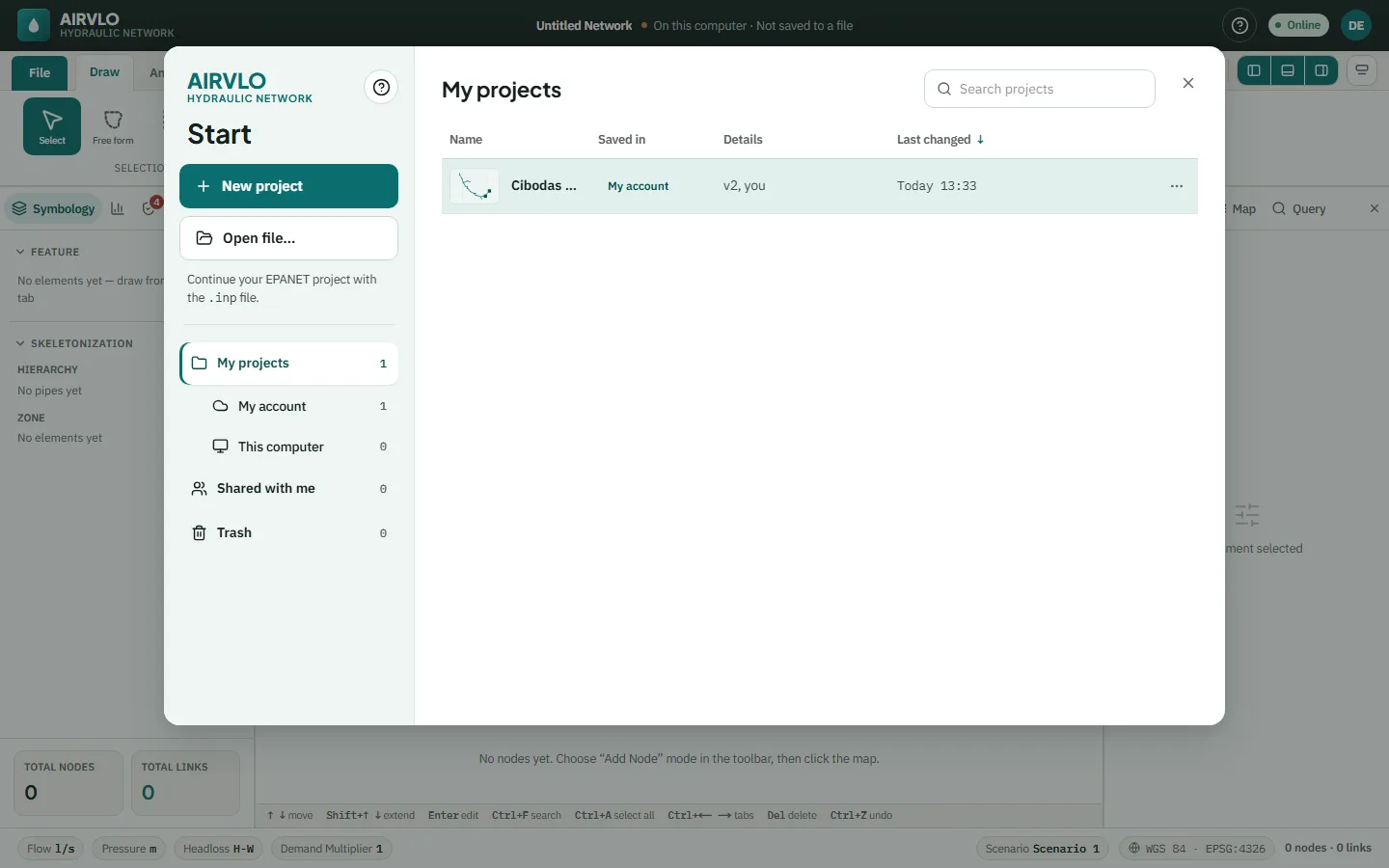
- My projects — everything you own: My account (saved in your account, open it from any computer) and This computer (projects kept as a file on this computer).
- Shared with me — projects other people invited you to. New invitations wait here with Accept and Decline.
- Trash — deleted projects stay for 30 days; press Restore to bring one back.
Type in Search projects to filter the list, and click a column header to sort it. The ⋯ button on a row has Open, Rename and Pin, plus Share…, Versions… and Move to trash for projects you own. Close Start with ✕ or Esc. The ? next to the logo opens this guide or replays the welcome tour.
Start a new project
- Press New project and type a Project name.
- Check the Default settings: pipe type and roughness for new pipes, decimal separator, unit system (SI or US), flow unit, and the units shown for diameter, length, elevation, velocity, headloss, head, reservoir diameter and reservoir volume.
- Press Create project. The project is saved in your account as its first version.
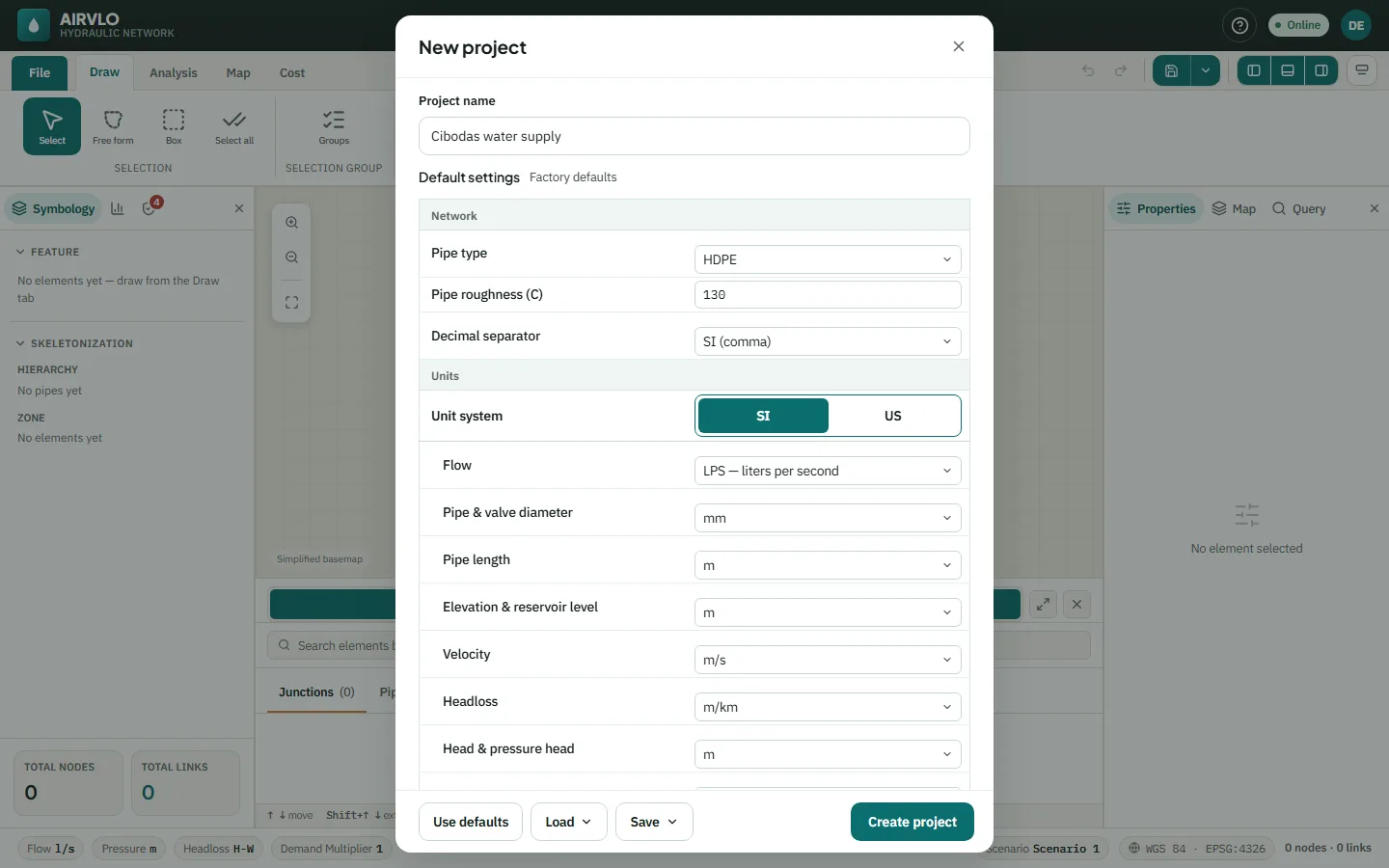
Use the same settings on every project: Save ▾ stores them in your account or as a file, and Load ▾ brings them back. Use defaults returns to the factory values.
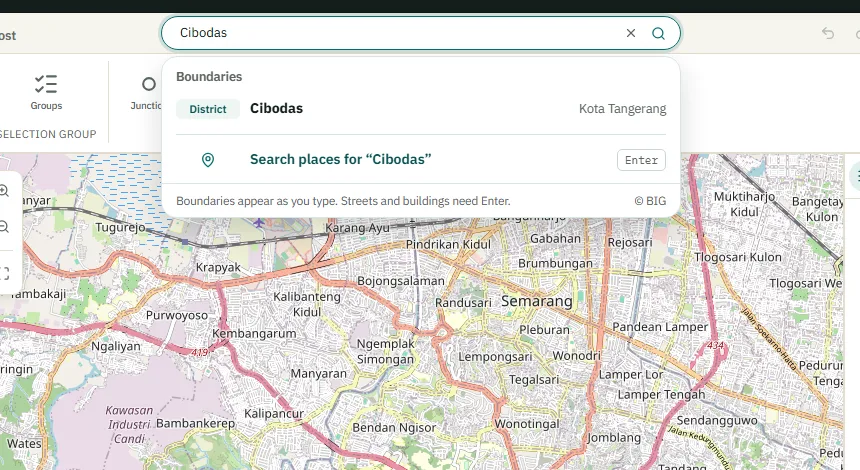
Then find your area with the search box above the map. Administrative boundaries — province, regency or city, district, village — appear as you type. Press Enter to search streets and buildings, or type coordinates such as -7.8, 110.4.
Open a file
Press Open file… on Start, or File › Open › Browse…, and choose a file:
- .ahn — a full AIRVLO project, with every scenario and the cost estimate.
- .inp — a network file from other hydraulic modelling software. It opens as a new project.
- .scn and .map — scenario data and node positions. They are applied to the project that is already open.
A .net file can’t be opened: save it as .inp in the software that made it first.
The File page
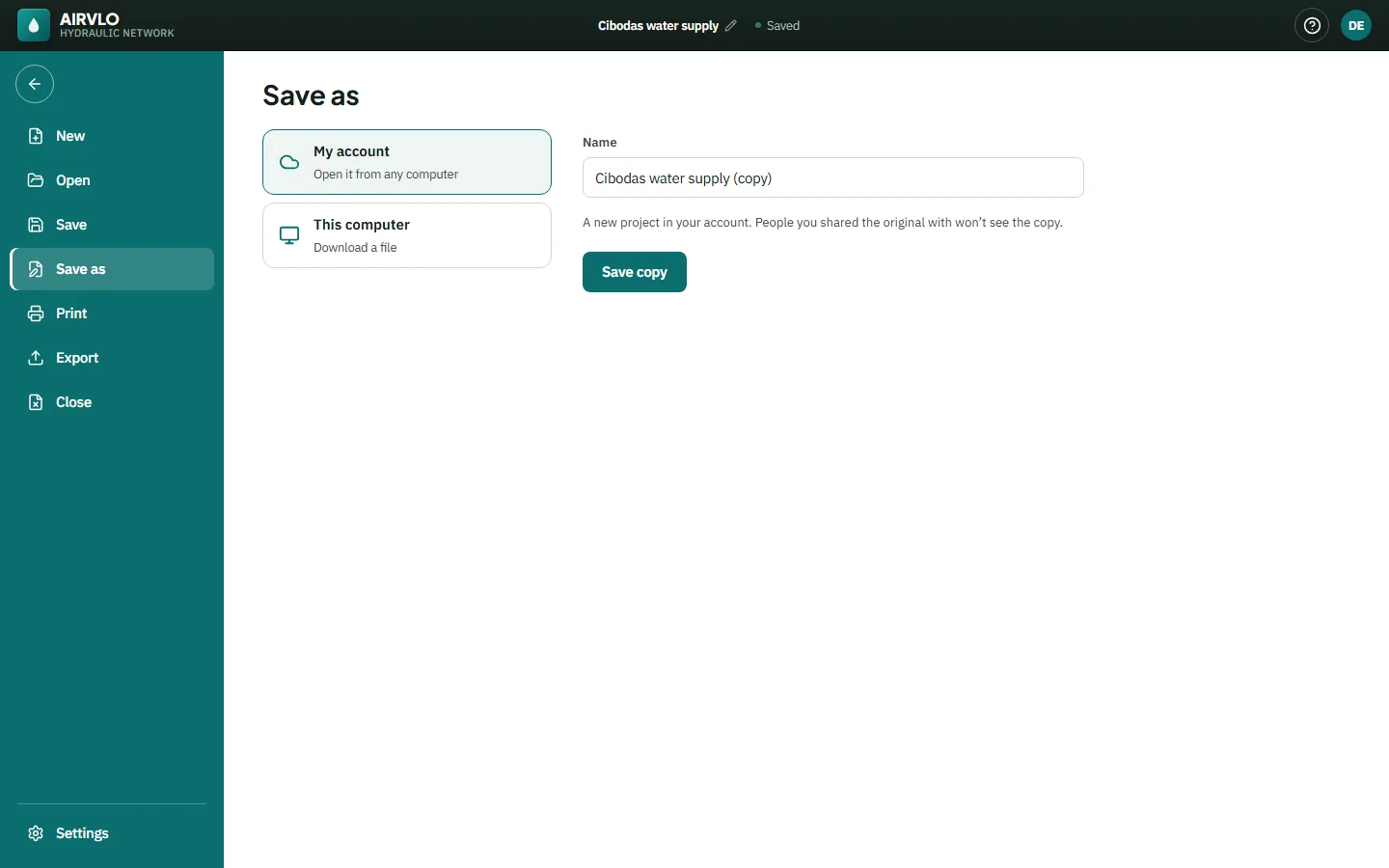
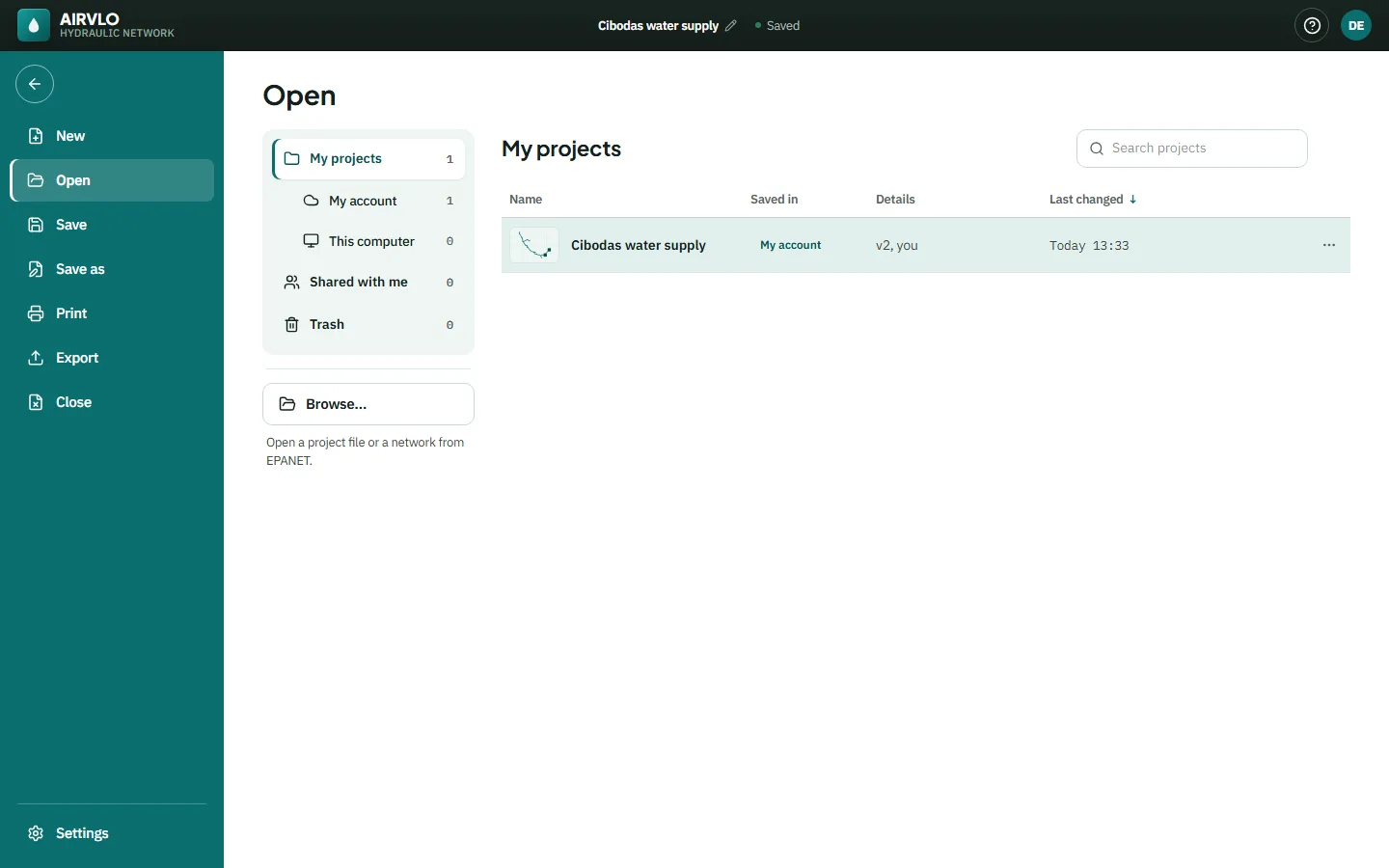
The File tab opens a full page with New, Open, Save, Save as, Print, Export, Close and, at the bottom, Settings. The arrow at the top or Esc takes you back to the map.
- Save (Ctrl+S) — a project in your account saves a named version. A project on this computer is written to its .ahn file; browsers other than Chrome and Edge download a new copy each time.
- Save as — save a copy to My account or download it to This computer.
- Close — closes the project and shows Start again.