Edit properties
Select an element to see its properties on the right. Select several — with a box, a free-form shape or Select all — to change them together.
The Properties panel
Every change applies at once and is saved with the project — there is no Apply button, and Ctrl+Z takes it back.
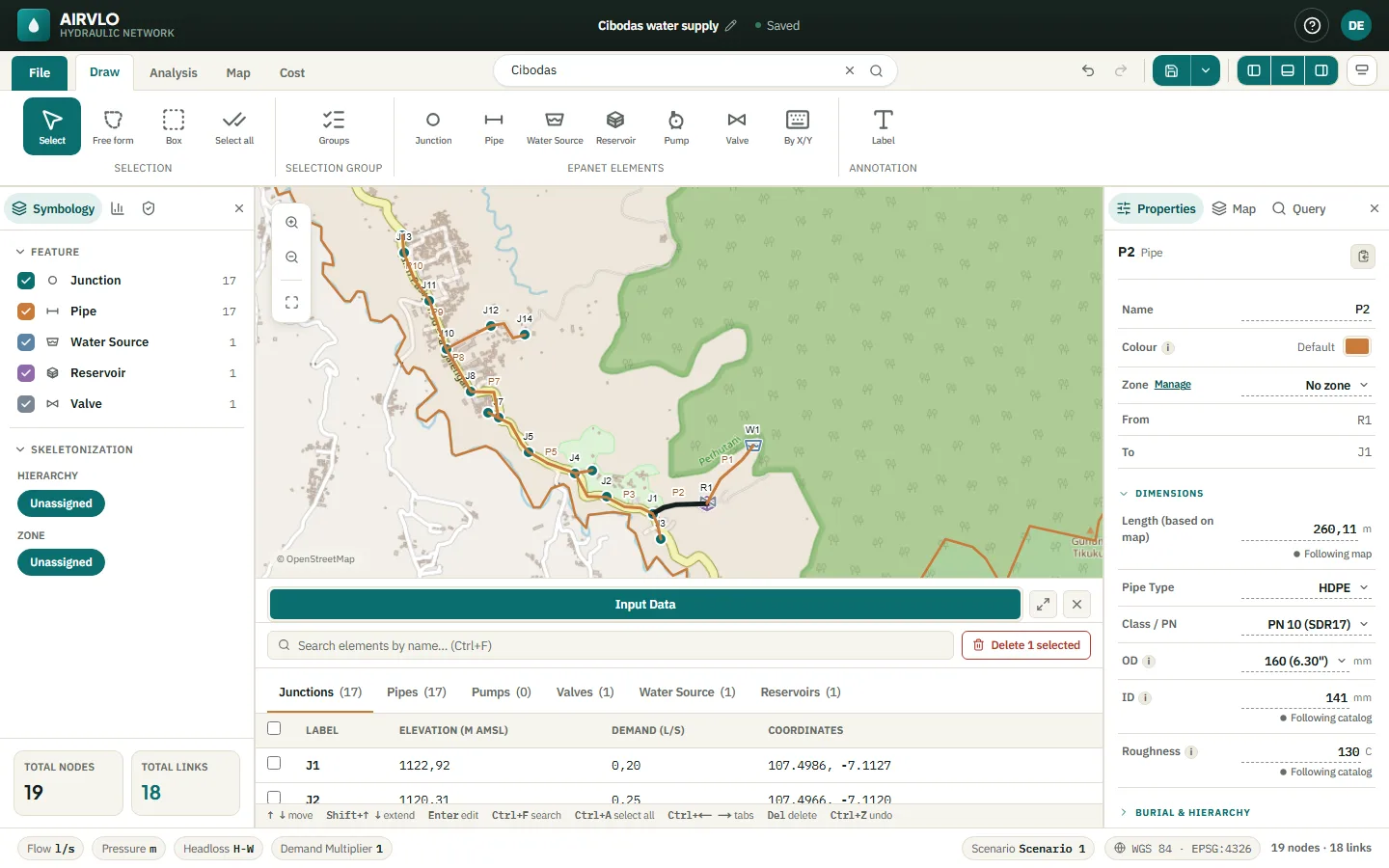
- Junction — position, elevation, demand (with extra demand categories), time pattern and emitter coefficient.
- Pipe — Pipe Type, Class / PN and OD set the inside diameter and roughness. The length follows the map until you type one; Follow map again undoes that. Burial depth, hierarchy and cost fields are here too.
- Water Source — total head.
- Reservoir — initial, minimum and maximum level, diameter or length and width, or a volume curve.
- Pump — head curve (or one design flow and head), efficiency, speed and initial status.
- Valve — valve type, diameter and setting.
Every element can belong to a Zone; Manage next to it opens the zone list.
Change many elements at once
- Select several elements. The panel turns into Bulk edit.
- If they are of different kinds, click a chip such as 3 Junction to keep only that kind.
- Pick a property, choose Replace, Multiply or Add To, and type the value.
- Press Apply. Undo bulk edit next to it takes the whole change back.
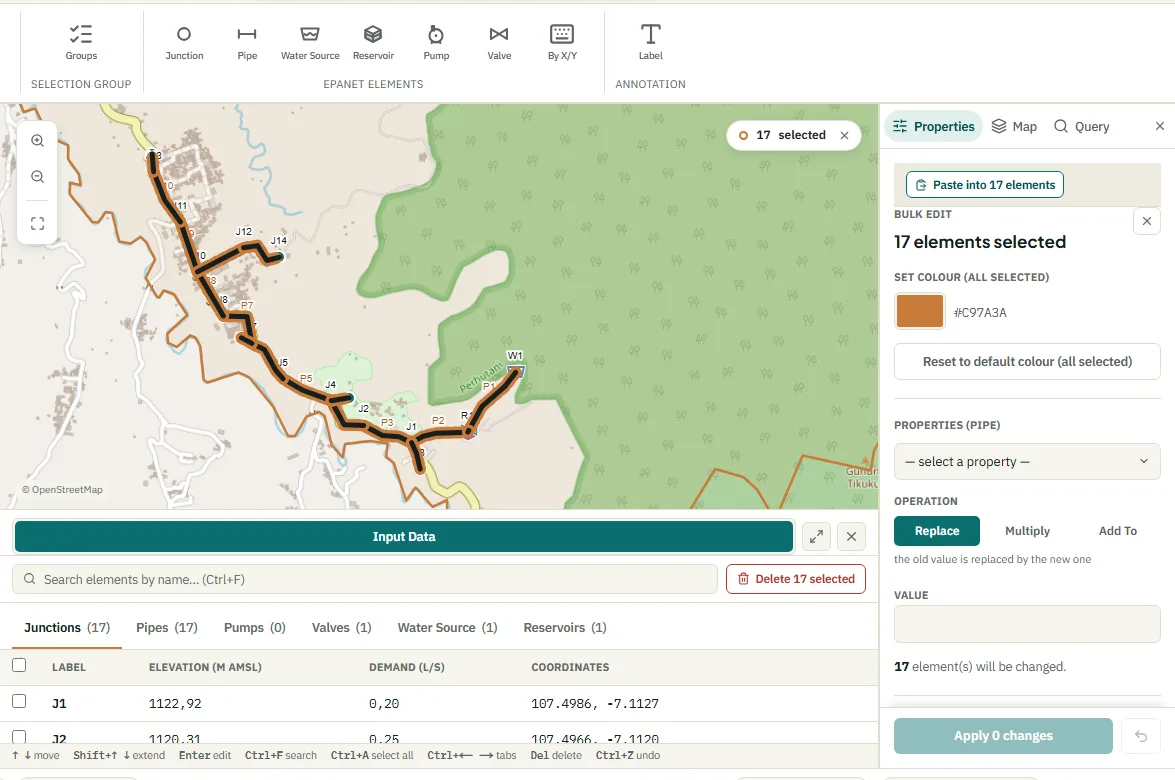
Assign sets zone, hierarchy, installation method and construction year for all selected pipes. You can also set one pipe type, or one pump curve, for the whole selection.
Copy properties
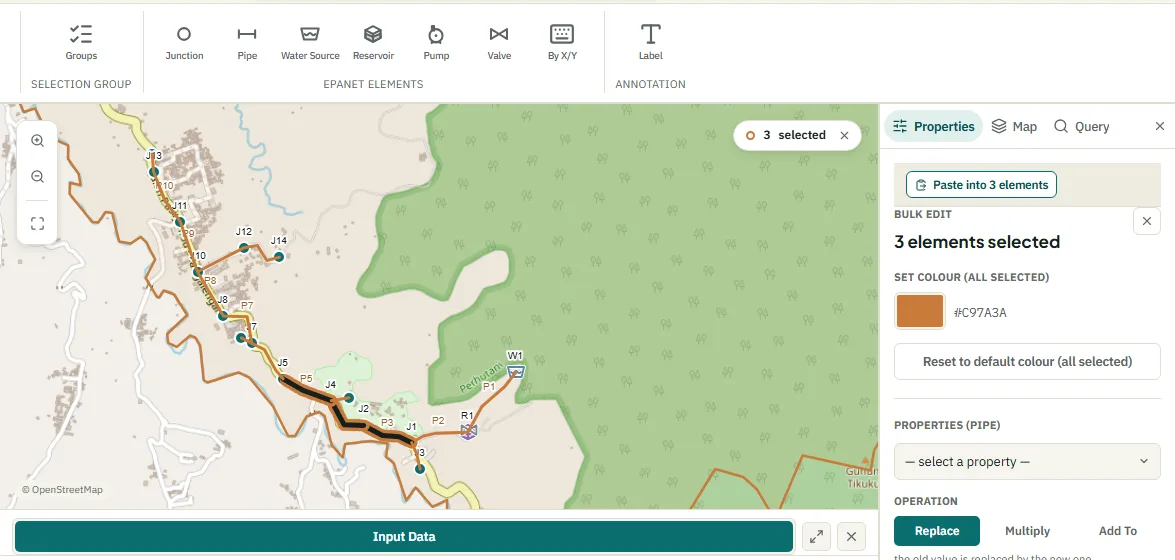
Press the copy icon next to an element’s name, select other elements of the same kind, then press Paste into N elements. Only the hydraulic values are copied — never the name, position or connections.
Demand patterns, curves and controls
- Demand pattern — on a junction, press New or Edit next to Time Pattern. Give one multiplier per period, such as 0.6 at night and 1.4 at the morning peak.
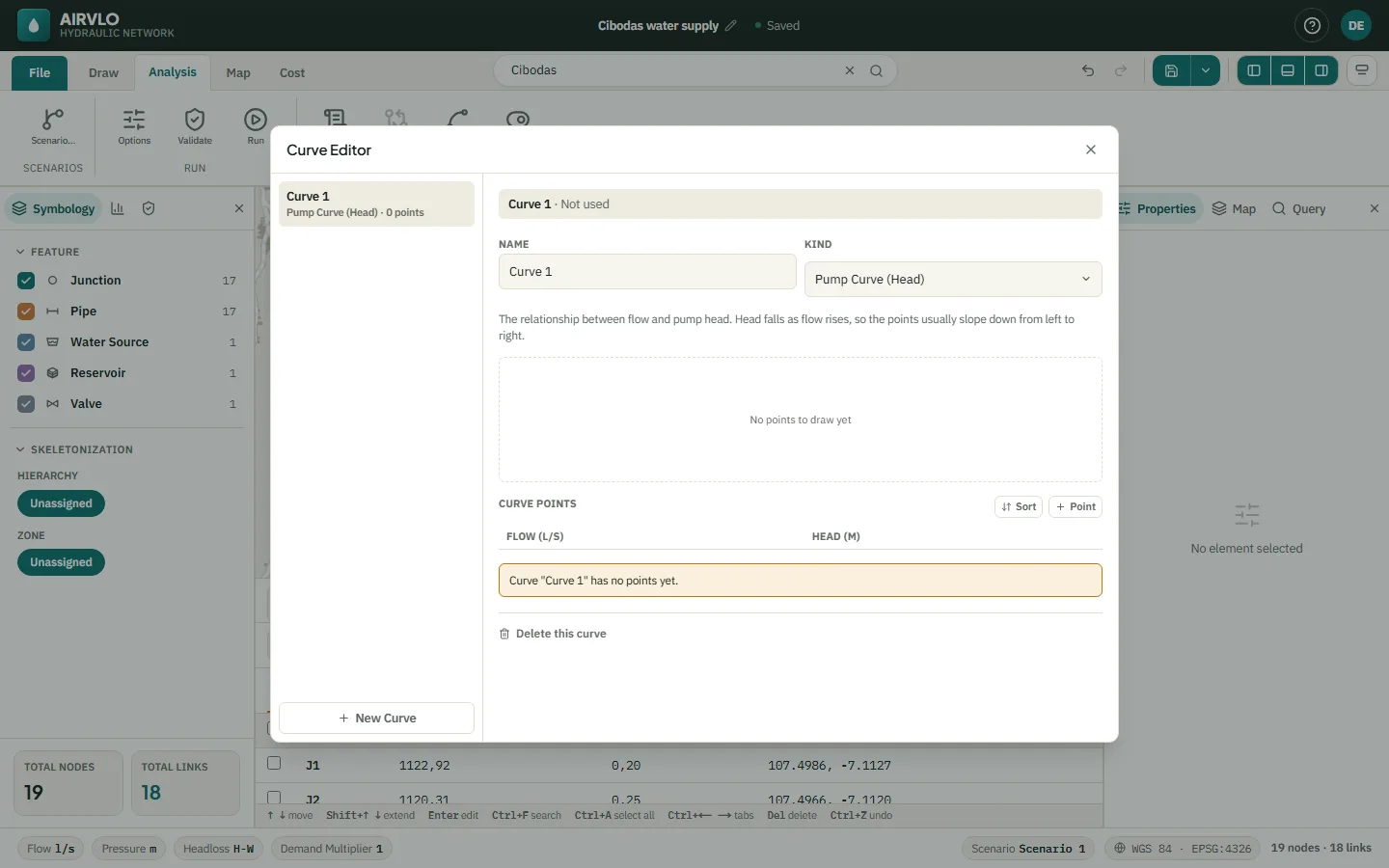
- Curves — Analysis › Curves holds pump head curves, pump efficiency curves, reservoir volume curves and GPV headloss curves.
- Controls — Analysis › Controls opens simple controls (open or close a link when a level or time is reached) and rules with conditions and priorities.
The data table
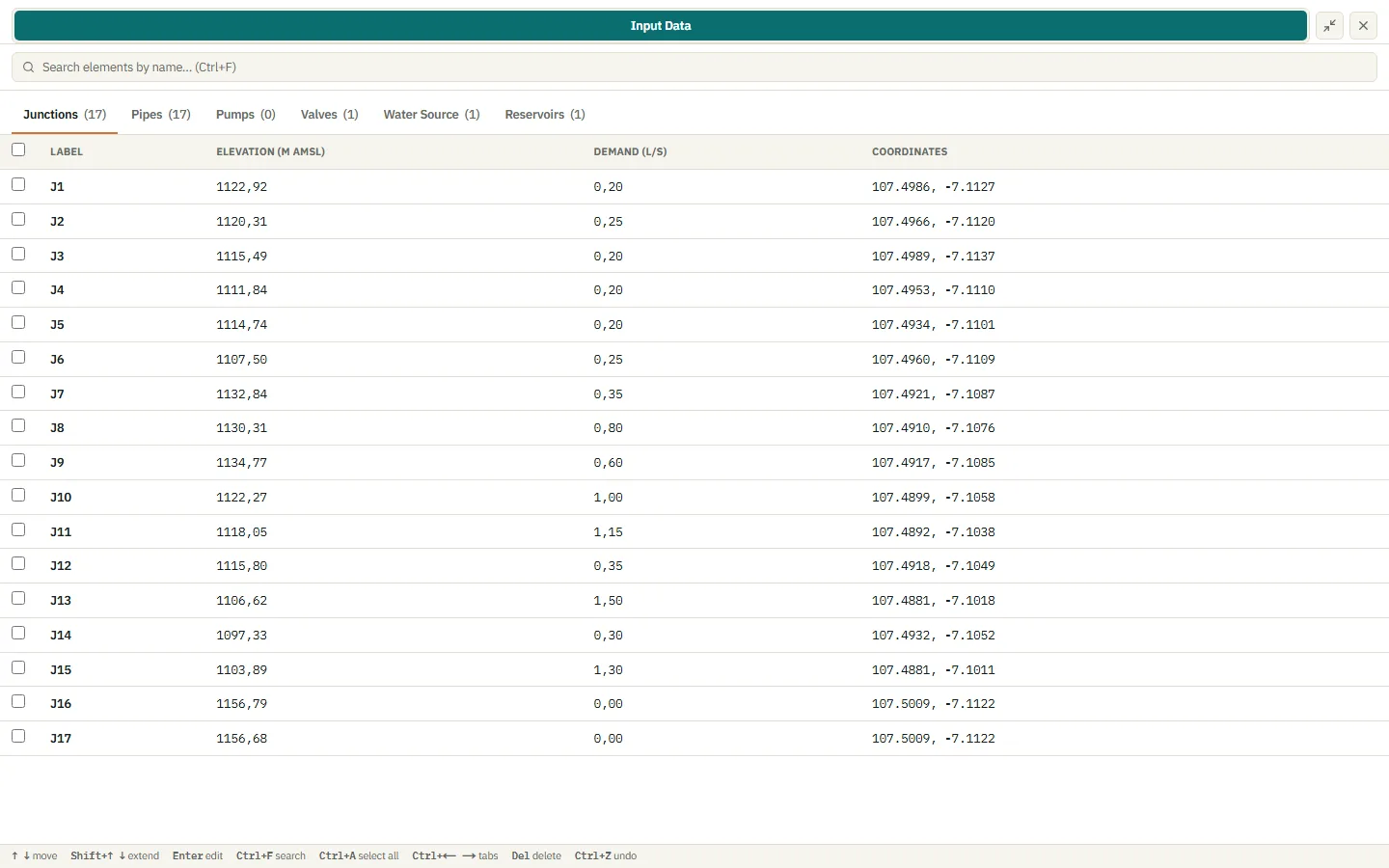
The bottom panel lists every element in Input Data, one tab per kind. Search with Ctrl+F, move with the arrow keys and press Enter to jump to the value in the Properties panel — that is where values are edited. The expand button shows the table full screen, with the properties beside it.