Legends, labels & map display
Colour the network by any value, set your own legend classes, and choose labels, symbol sizes and flow arrows.
Colour by a value
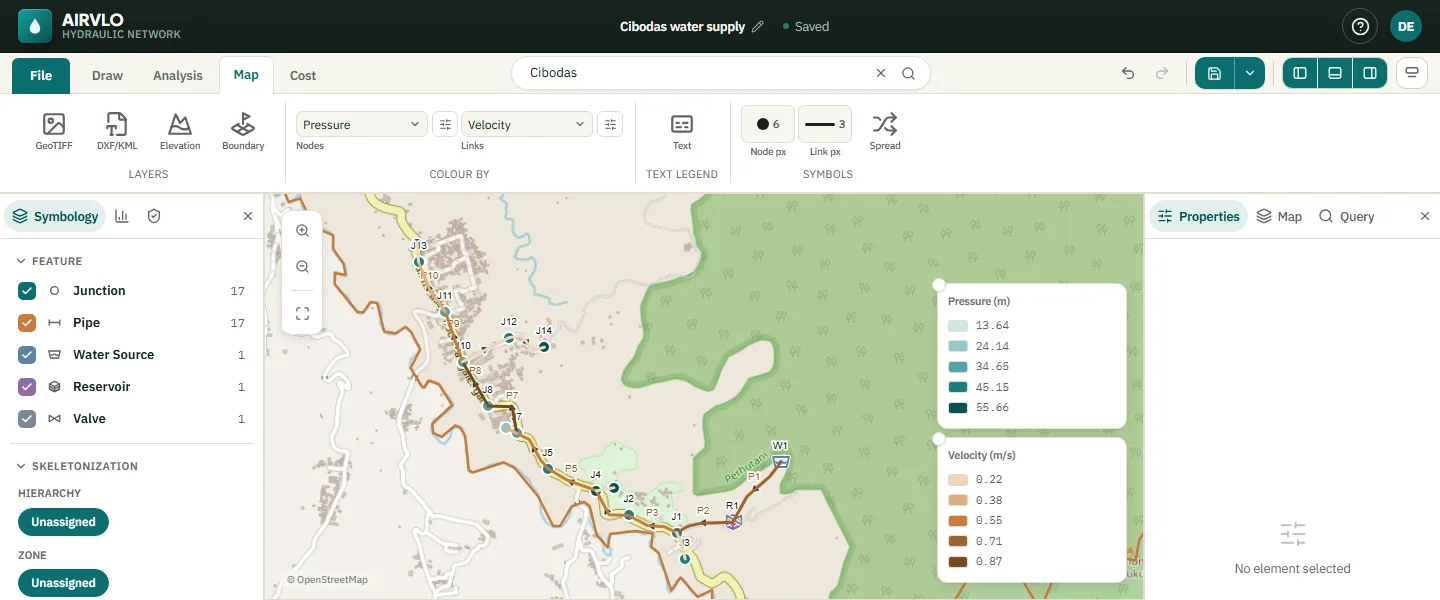
Map › Colour By has one list for nodes (elevation, demand, head, pressure, quality…) and one for links (length, diameter, roughness, flow, velocity, unit headloss…). Result values become available after a run. A legend box appears on the map: drag it to move it, drag its corner to resize it.
Edit the legend
Press the button next to a Colour By list, or right-click a legend box, to open the Legend Editor.
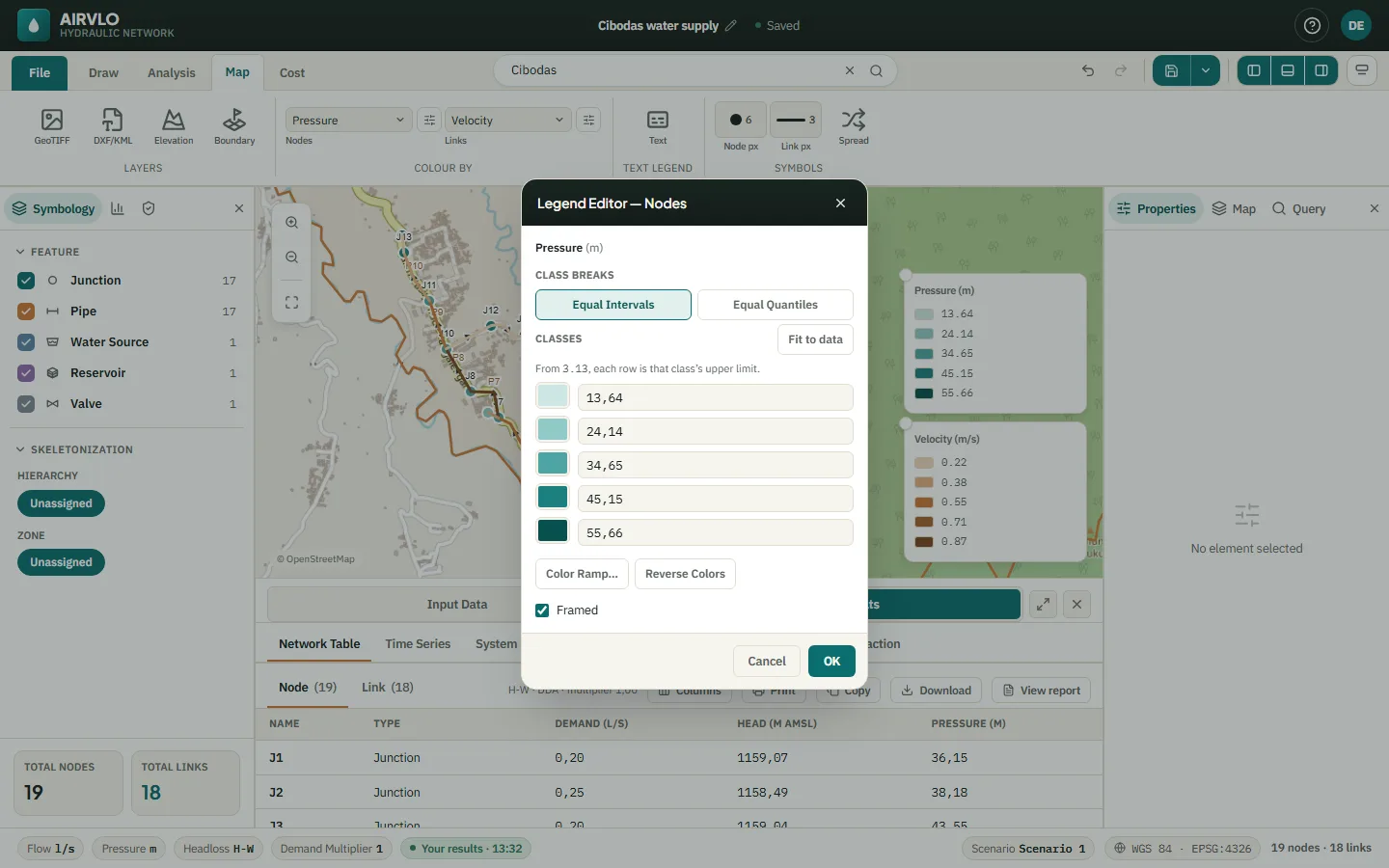
- Equal Intervals or Equal Quantiles set the class limits for you; type your own limits to override them.
- Color Ramp… and Reverse Colors change the colours.
- The number of decimals follows Settings › Display › Decimal places.
Labels and symbols
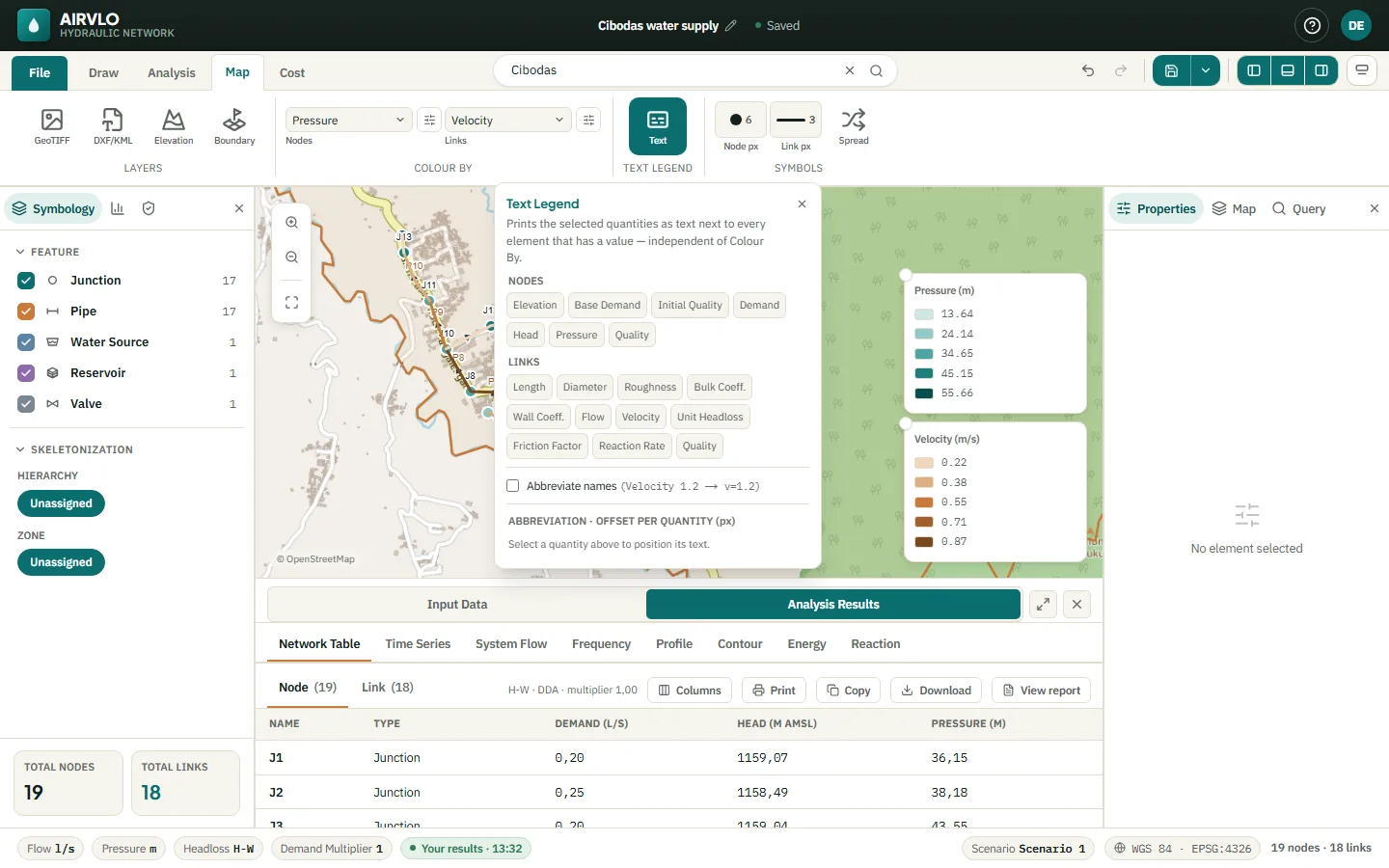
- Text (Map tab) — prints chosen values next to every element, such as diameter and length on pipes, with an offset for each value.
- Node px and Link px — symbol size and line width.
- Spread — moves overlapping nodes apart on screen. Only the drawing moves; the coordinates stay the same.
- Right panel › Map › Visibility — node and pipe labels, annotation text, hiding crowded labels, flow direction arrows (after a run), a reference grid and an overview map.
In the left panel, Symbology shows or hides each kind of element; right-click a kind to change its colour. Skeletonization filters the map by hierarchy and zone.