Run & read results
Run the analysis, fix what Validation flags, then read pressures and flows on the map, in tables and in graphs.
Run the analysis
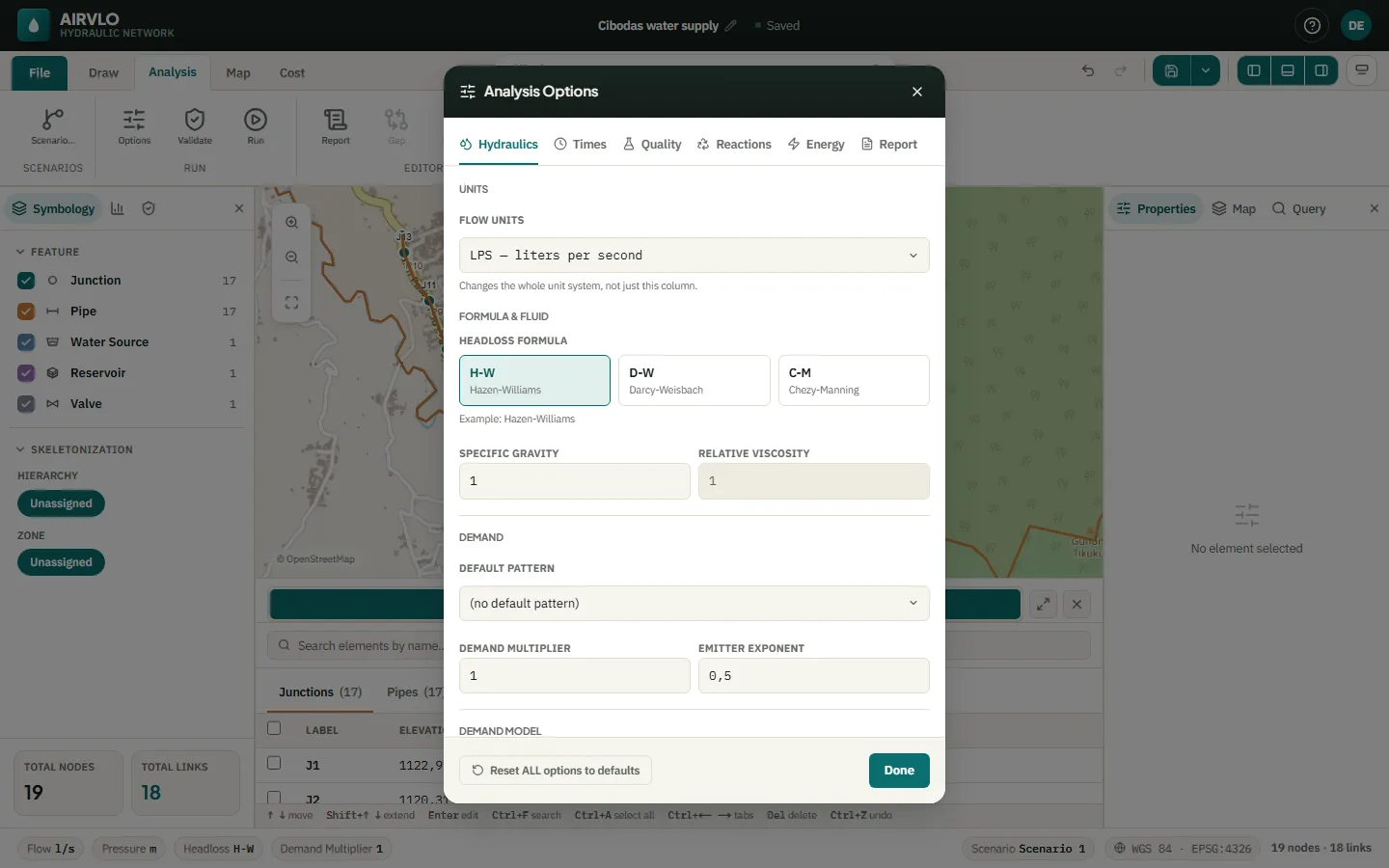
- On the Analysis tab, press Options to check the headloss formula (Hazen-Williams, Darcy-Weisbach or Chezy-Manning), the demand model and, for a 24-hour run, the Total duration and time steps.
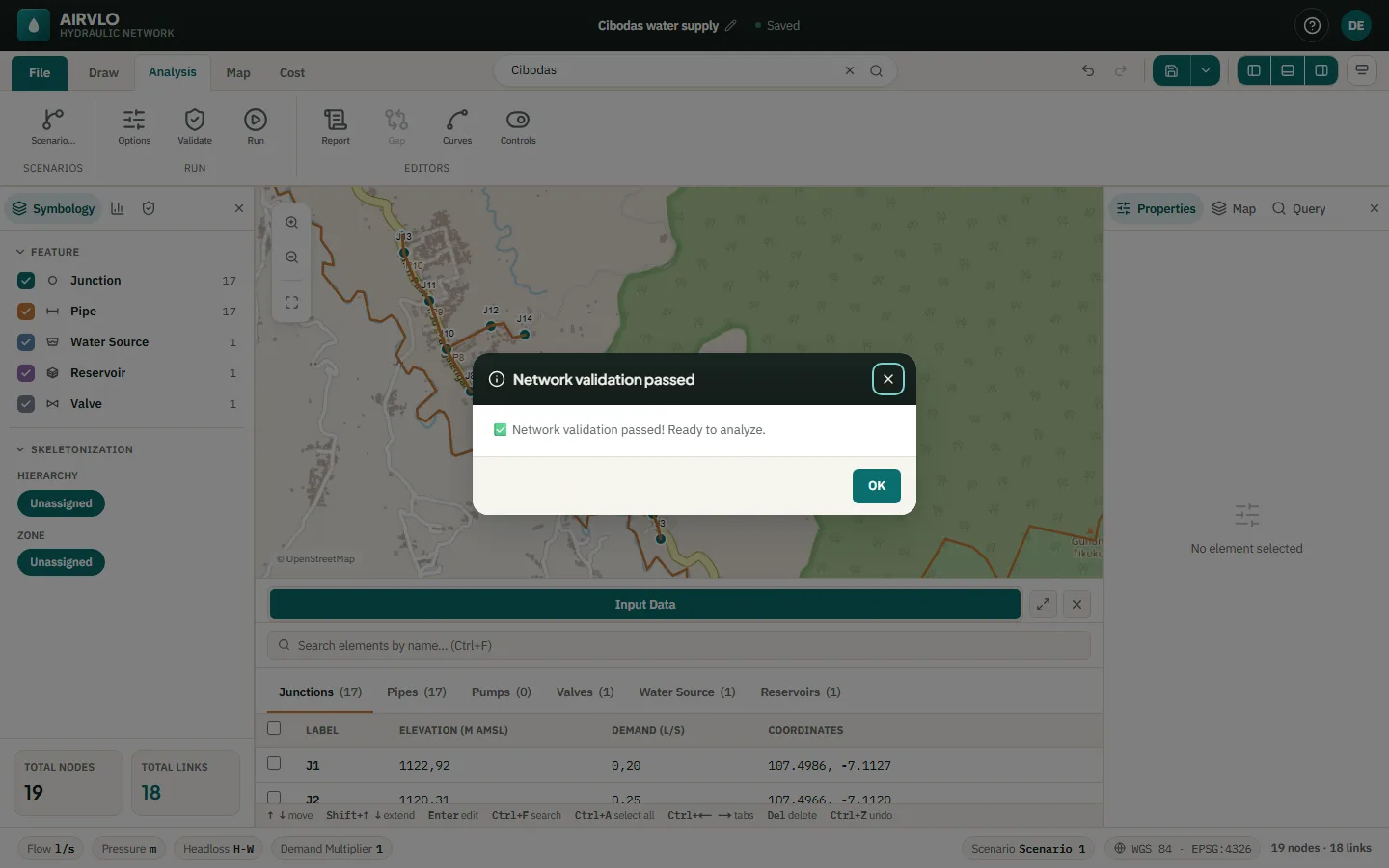
- Press Validate. Errors must be fixed before a run; warnings only ask you to confirm.
- Press Run. The status bar shows Running… — or your place in the queue when the server is busy — with Cancel.
The Validation tab in the left panel keeps the list: click a row to jump to the element.
Read the results
On the Map tab, set Colour By to Pressure for nodes and Velocity or Flow for links. The bottom panel opens Analysis Results.
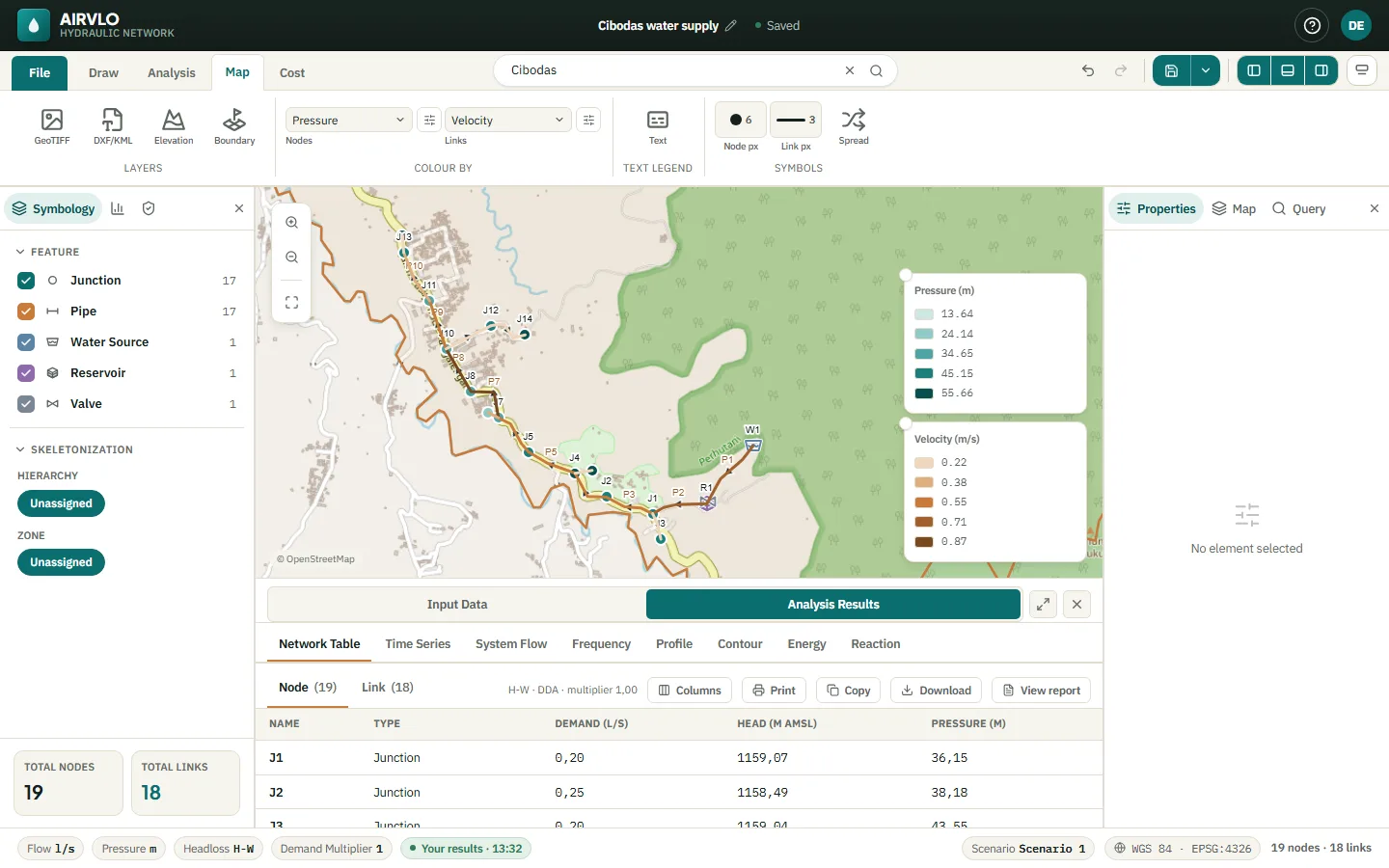
- Network Table — every node and link. Columns chooses what is shown; copy, download, print or View report.
- Time Series, System Flow, Frequency, Profile, Contour, Energy and Reaction — graphs, each with print, copy and .csv download.
- After a run over time, the time bar steps through the saved hours. Moving it only changes what is shown; nothing is recalculated.
Problems found during the run — a part of the network cut off, negative pressure — appear in a box over the map with Show on map. When you change the network, the results are marked as outdated until you run again.
The Query tab in the right panel selects every node or link that meets a condition, for example all junctions with pressure below 10 m.